
1. General HUD Controls and display
2. HUD Options Menu
3. Controlling your weapon
General HUD Controls and display
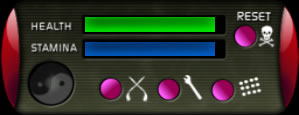
The green bar on the HUD is your health meter. This decreases when another
player or an NPC attacks you. When your stamina is full your health will
increase gradually. When your health bar reaches zero you will die. Pressing
the Reset button on the right will regenerate your health after a 5 second
cool off period. If you press this button while your health is partially
full it will cause you to immediately die. This will count as a suicide
on the score table. Be careful, only use this if you want to reset and
do not mind this being noted on the score table. A better alternative
is to wait for your stamina and health to regenerate.
The Yin/Yang symbol is used to charge your weapon. When you weapon is charged your next strike will cause massive damage. It takes 5 seconds to charge, during this time you will be vulnerable. If you do not use the charged weapon within 10 seconds it will fizzle out its power.
A quicker alternative to this is to block. When you are blocking (using the page down key on your keyboard or the button on the button control pad) you will not take any damage from your opponent, and your weapon will become charged immediately ready for a powerful counter attack. If a player is blocking you can use a down arrow attack to knock them out of the block and cause damage.
The first button on the HUD (marked with a crossed swords icon) is the draw/sheath your weapon button. When your weapon is sheathed you cannot do any damage with it. None of the controls for it will work.
The HUDs are set up and sold with specifically designed weapons. The
weapons are separate and do not contain any active controls. So if you
have made your own weapon (of the same style) and would like to use it
in combat, you can use it with the HUD. The weapons designed to go with
the HUD include various special effects. You can find more information
on the effects in your specific weapons documentation.
2. HUD Options Menu
The middle button (marked with a spanner icon) is the options and settings
button, this will bring down a sub menu with the following available
options.
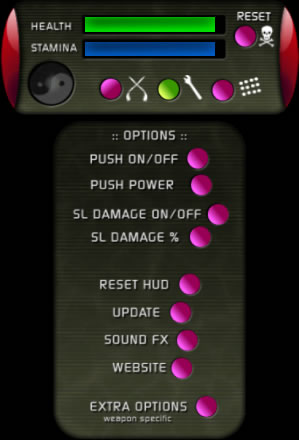
Push On/Off - Turns on and off push with various degrees of power. This will only work in push enabled zones of SL.
SL Damage On/Off - This turns on/off SL Damage System. This will only work in Sl Damage enabled areas
SL Damage % - This adjusts how much damage will be done by SL attacks. (this is entirely independent from Combat Evolution Damage settings)
Reset HUD - This will reset the HUD, this is useful for advanced usage by people that wish to change the animations and sounds etc in modify enabled HUDs (Your HUD May NOT be modify enabled. If this is the case please do not ask me for a modify enabled version, if it is no mod, it is no mod for a reason.). For those that can... you can insert new animations for attacks and general animations. Setting up the various notecards is similar to setting up an AO. Please make sure you make a backup of your original HUD (they are copy). I do not want to go into detail on doing this here. But simply put it is a matter of putting content inside the hud, editing the notecards and resetting the HUD. I Suggest if you do attempt to customize your HUD you make sure you have a backup first.
Update - this will check for updates. If Any updates are found for your particular weapon they will be sent to you.
Sound FX - You can turn on and off the various sound effects. This includes weapon sounds and voice sounds.
Website - This is a quick link to the Combat Evolution website.
Extra Option - This will bring up any options that are specific to your currently attached weapon. This might include colour options for trail effects, options for enabling blood effects etc. See your specific weapons documentation for a list of available options.
The bottom right hand button will bring down a menu allowing
you to control the attacks and blocks using your mouse by clicking on
buttons to block and attack. You may use this method or keyboard controls.
( Note: Although the button controls will perform the animations and
work with the Combat Evolution combat system, they may not work with
other combat systems.
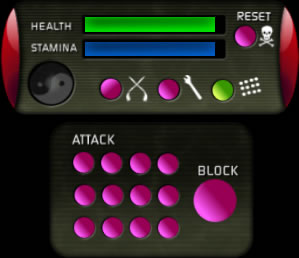
As well as using the button controls you can also use the keyboard and
mouse to control your weapon. To use keyboard hold your left mouse button
down on the ground near your avatar. Whilst holding the mouse button
down tap the arrow keys to perform a strike. To Block use the page down
key on your keyboard. Holding page down will hold a block until you release
it.Holding page down will hold a block until you release it.

© 2007 Abranimations (Abramelin Studios Limited)
Second Life® and Linden Lab™ are trademarks or registered trademarks of Linden Research, Inc. No infringement is intended.